The short answer
In the Resume Sketch editor, open the Email panel, enter the recipient, pick a tone and click Write email to get a 90 to 160 word draft with a subject line, built only from your resume and the target job. Copy it, open it in your mail app, or on Pro and Max connect Gmail and send it from your own address with your resume attached. Resume Sketch only asks for permission to send, every email needs your confirmation, and you can disconnect at any time.
01Why a short cold email still works
Applying through a portal puts your resume in a queue. A short, well-aimed email puts it in front of a person. It won't replace the application, but it gives the recruiter or hiring manager a reason to look for your name in that queue.
What makes it work is respect for the reader's time. The emails that get answers are short enough to read on a phone, specific enough to prove you are not mass-mailing, and end with one easy question. Resume Sketch's cold email writer is built around exactly those rules.
- 90 to 160 words in the body. Every sentence has to earn its place.
- An opening that says who you are and which role you mean. No "I hope this email finds you well".
- One or two sentences of proof: your single most relevant result, named specifically.
- One low-friction ask: a 15-minute call, or the right person to talk to. Only one question.
02Write the email with AI, step by step
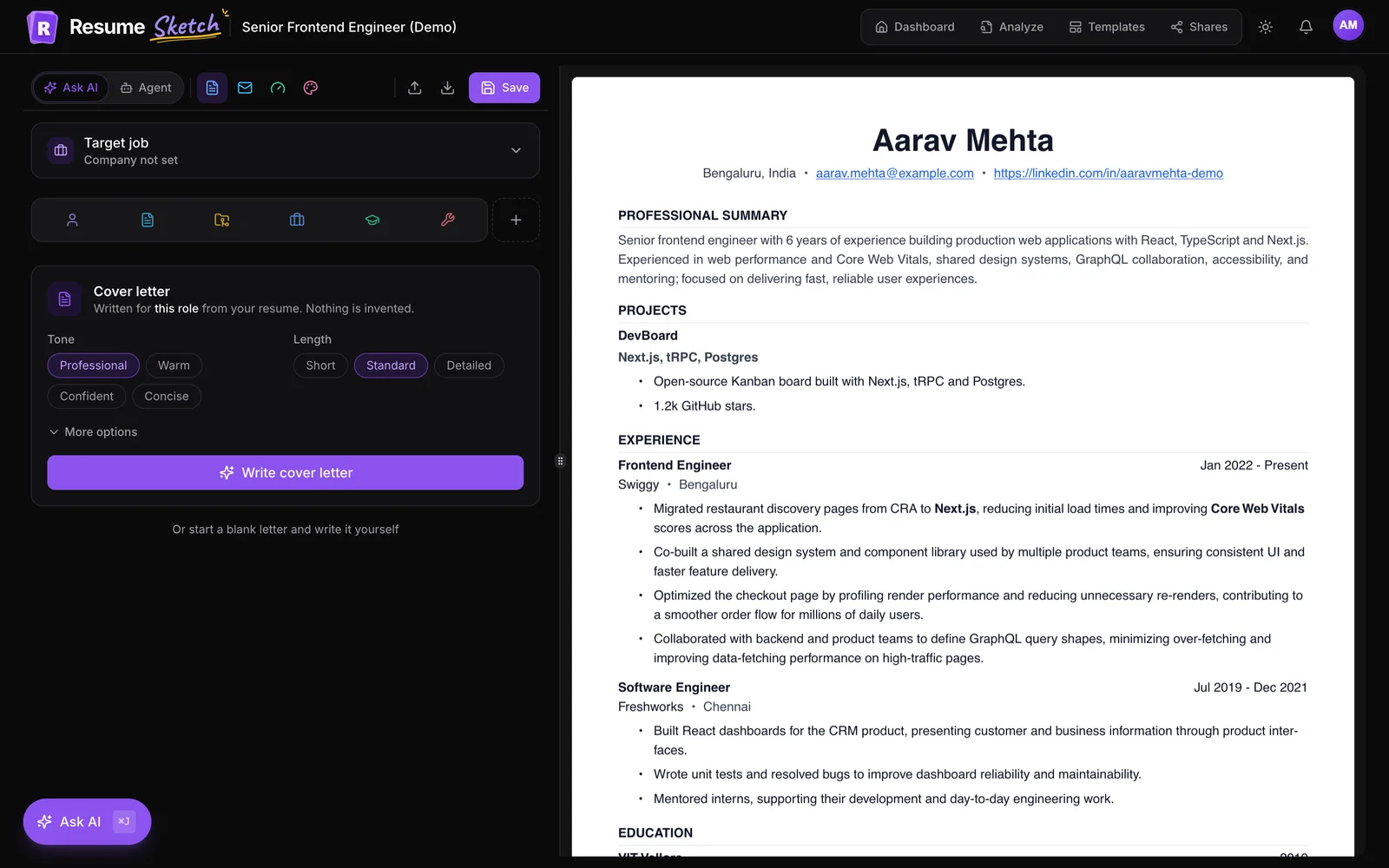
The cold email writer lives in the editor next to the cover letter. Like the cover letter, it needs a target job, because it writes about one specific role. If the resume doesn't have one, the panel shows Add target job so you can paste the posting first.
- 1
Open the Email panel
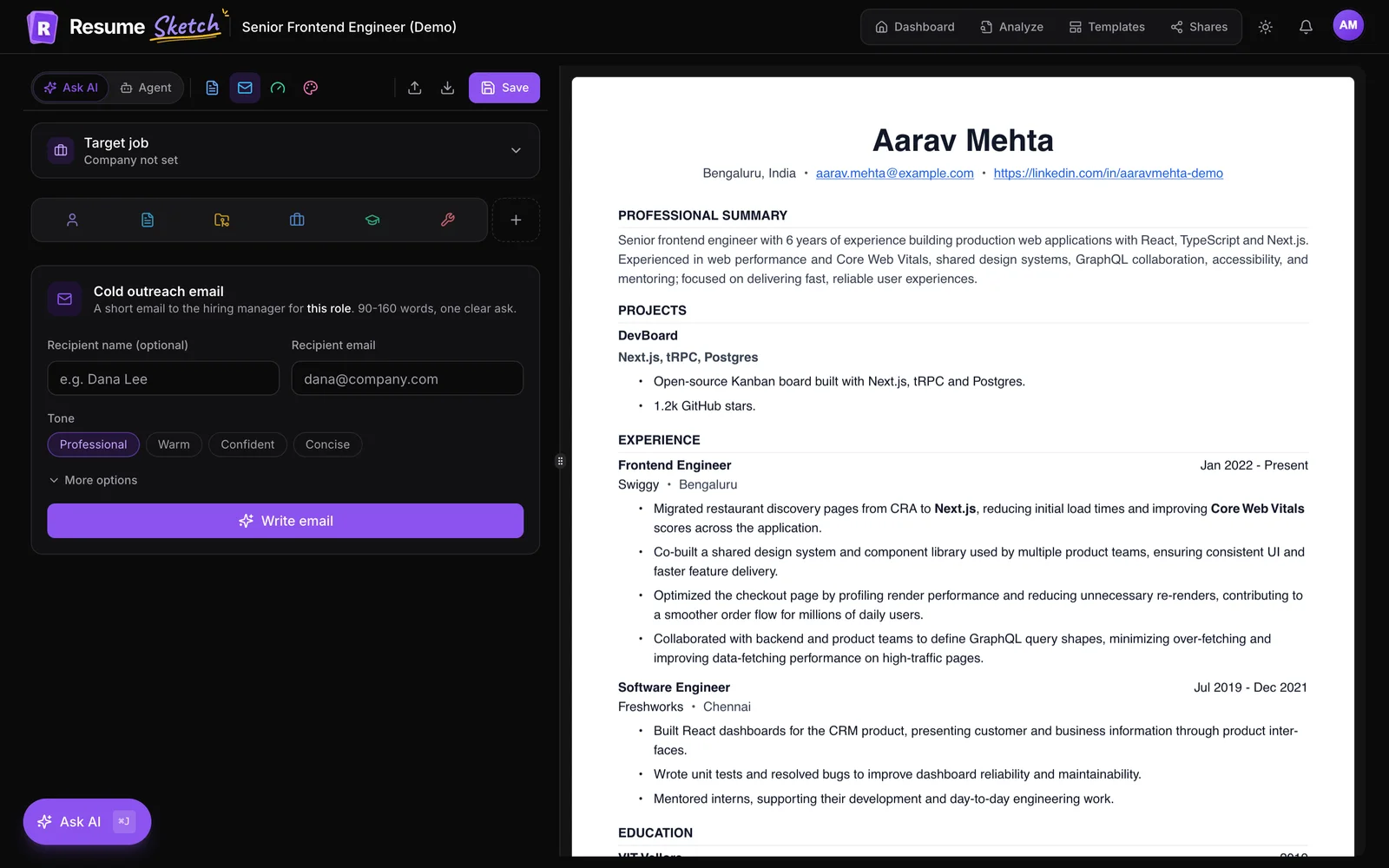
Open the resume you want to send, then click Email in the editor toolbar (an envelope icon on narrow screens). The panel is titled Cold outreach email and names the role and company it will write about.
- 2
Add the recipient
Fill in Recipient name (optional) and Recipient email. The name is used in the greeting. The email address is needed if you want to open the draft in your mail app or send it with Gmail.
- 3
Choose a tone
Pick Professional, Warm, Confident or Concise. For recruiters you have never spoken to, Professional or Concise is a safe default. Warm suits mission-driven organisations and referrals.
- 4
Add context under More options (optional)
Open More options and add anything true that isn't on your resume, such as We met at the Austin nursing job fair or Ask about the night-shift opening.
- 5
Generate the draft
Click Write email. The subject line and message stream in, and you can press Stop at any time.
- 6
Edit freely
The draft appears in editable Subject and Message fields with a word count. Change anything you like. Your greeting ("Hi Dana," or "Hi there,") and signature ("Best regards," your name, phone and LinkedIn or website) are added automatically when you copy, open or send it.
Not happy with the angle? Try again writes a fresh version with the same settings, and the trash button clears the draft. Drafts are kept per resume while you work, so switching to another editor tab and back won't lose them.
Easy to ignore
- Subject: Job application
- I hope this email finds you well. I am reaching out to express my interest in any opportunities at your company. I have a strong background in many areas and would love to chat.
Easy to answer
- Subject: ICU nurse with 5 years' experience: RN role
- I'm an ICU nurse applying for the night-shift RN opening on your cardiac unit. At St. Mary's I precepted six new graduates while covering a 12-bed unit. Would you have 15 minutes this week to tell me what the team needs most?
03Three ways to send it
| Option | What it does | Plans |
|---|---|---|
| Copy email | Copies the subject and full email (with greeting and signature) to your clipboard | All plans |
| Open in mail app | Opens your default email app with recipient, subject and body filled in | All plans |
| Send with Gmail | Sends from your own Gmail address, optionally with your resume PDF attached | Pro and Max |
The first two work everywhere. Open in mail app is handy if you use Outlook or Apple Mail: you get a ready-to-send message, but you will need to attach your resume yourself. On Free, the Gmail option appears as a locked card with See plans.
04Connect Gmail and send from your own address (Pro and Max)
Sending from your own Gmail matters: the email comes from you, replies land in your inbox, and the message sits in your Sent folder like any other. Resume Sketch never sends on your behalf without you pressing the button.
- 1
Click Connect Gmail
Below a finished draft you will see Send it from your Gmail. Click Connect Gmail. You are taken to Google's own consent screen.
- 2
Approve the send permission
Choose your Google account and allow access. The only Gmail permission Resume Sketch requests is
gmail.send: it can send emails you approve, and it cannot read, search or delete anything in your inbox. - 3
Come back to your draft
Google returns you to the editor with the Email panel open and your draft still there. The Gmail card now shows From with your connected address.
- 4
Decide on the attachment
Attach my resume is ticked by default and shows the file name, for example Dana_Lee_Resume.pdf. It is rendered from the resume you have open, exactly as it looks in the preview.
- 5
Send, then confirm
Click Send with Gmail. A confirmation shows the from and to addresses, the subject and whether your resume is attached, and reminds you that it sends right away and can't be unsent. Click Send now to send it, or Cancel.
After sending you get a confirmation, and the Gmail card lists the latest emails sent from this resume with who they went to, when, whether the PDF was attached, and an Open link to the message in Gmail.
Disconnecting Gmail
You can disconnect at any time in two places: the Disconnect link on the Gmail card in the Email panel, or Profile → Account under Connected apps, where Gmail shows the address it is connected as and a Disconnect button. You can also remove access from your Google account settings.
05Follow-up etiquette that doesn't annoy anyone
Silence is normal. Recruiters juggle many roles, and a missed email is usually a busy week, not a verdict. A polite follow-up is expected and often gets the reply the first message didn't.
- Wait about a week before following up, longer if the posting mentions a timeline.
- Reply in the same thread so they can see your original message. In Gmail, use the Open link in Resume Sketch to jump to it.
- Keep it to two or three sentences. Restate the role, add one new piece of value (a relevant result, a portfolio link, your availability) and repeat your single question.
- Follow up once, maybe twice. If there is still no answer, move on gracefully and focus on other leads.
- Say thank you to anyone who replies, even with a no. They may remember you for the next opening.
06Common cold email mistakes
- Writing an essay. If it doesn't fit on a phone screen, cut it. Keep the AI's length or shorten it further.
- Asking for a job. Ask for a conversation or the right contact instead. It is far easier to say yes to.
- Vague subject lines. Put the role and your strongest credential in the subject so it makes sense before it is opened.
- Sending to a generic inbox. Find a named recruiter or hiring manager where you can. Use the name field so the greeting is personal.
- Sending the same email to everyone. Set the right target job for each company so the proof matches the role.
- Forgetting the attachment check. Before you press Send now, make sure the resume you have open is the version you want them to see.
Frequently asked questions
Can Resume Sketch read my Gmail inbox?
No. The only Gmail permission it asks Google for is gmail.send, which lets it send emails you approve. It cannot read, search or delete anything in your inbox.
Will Resume Sketch ever send an email without me?
No. Every email is sent only after you click Send with Gmail and then confirm with Send now. The confirmation shows the recipient, subject and attachment first.
Is Gmail sending available on the Free plan?
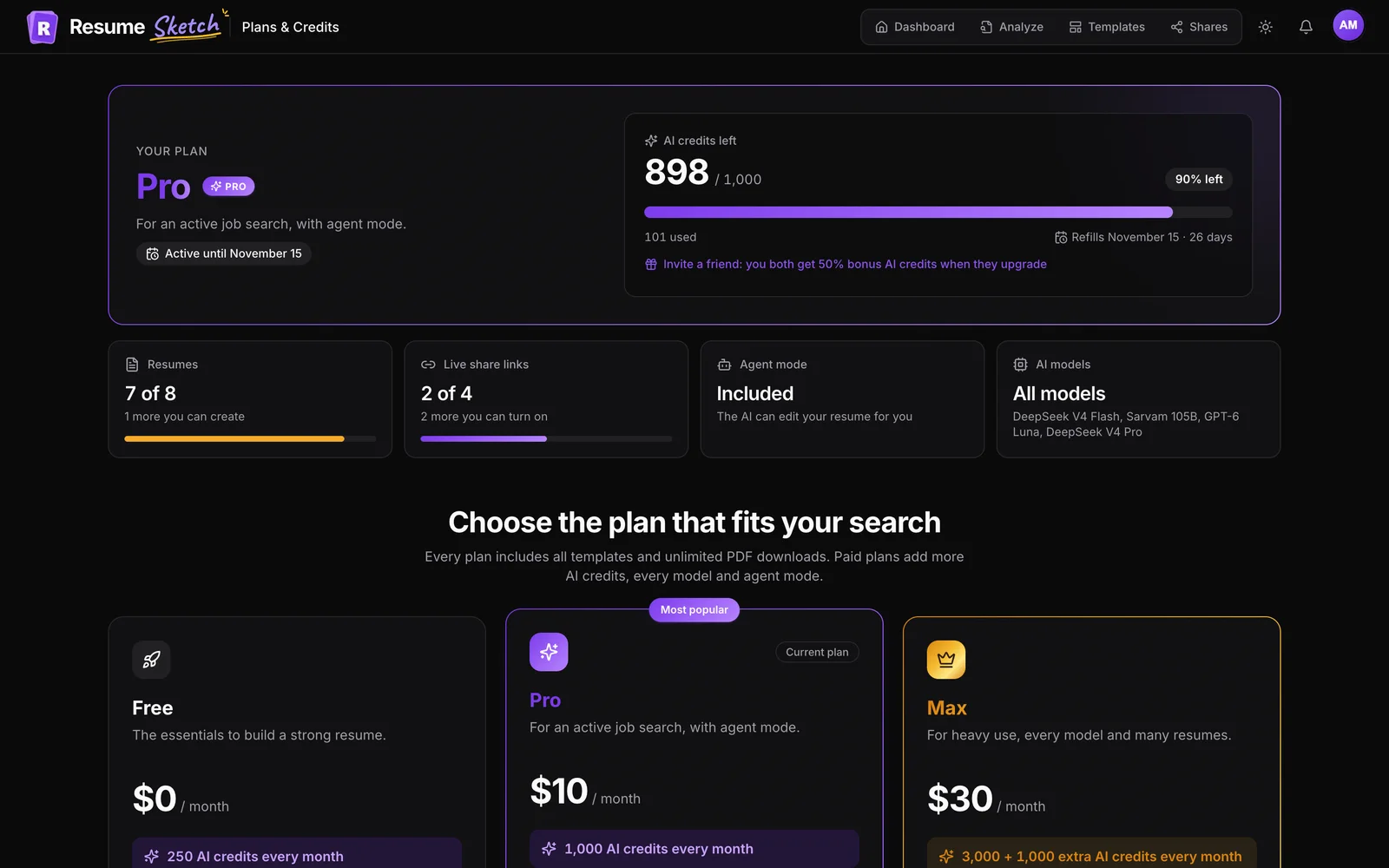
Gmail sending is included in Pro and Max. On Free you can still write the email with AI, copy it or open it in your mail app and send it yourself.
How do I disconnect Gmail?
Click Disconnect on the Gmail card in the Email panel, or go to Profile → Account and use Disconnect next to Gmail under Connected apps. You can also revoke access from your Google account.
Does the email use only facts from my resume?
Yes. The AI is instructed to use only your resume and the job posting, without inventing results, referrals or knowledge of the company. Add true context yourself under More options.
Can I use Outlook or another email app?
Yes. Open in mail app opens your default email app with the draft filled in, and Copy email works anywhere. Direct sending is available for Gmail only.