The short answer
Agent mode (Pro and Max) lets the AI edit your resume directly to reach a goal you describe, such as tailoring the whole resume to a job. Changes appear on the page straight away, highlighted, and you accept or reject each one or all at once. Use Ask AI for small, targeted edits and agent mode for multi-step work across the whole resume.
01What agent mode does
In agent mode, the AI works on your resume for you. You describe the outcome you want, and it plans and carries out the edits: rewriting bullets, adjusting your summary, updating skills, adding or reordering sections, switching templates, even writing a cover letter. It can make many changes in one run, checking the result as it goes.
It works with full context: your resume and its sections, your target job, your master profile and the current template. It also knows how the page actually prints with your template, which helps when you ask it to fit everything on one page.
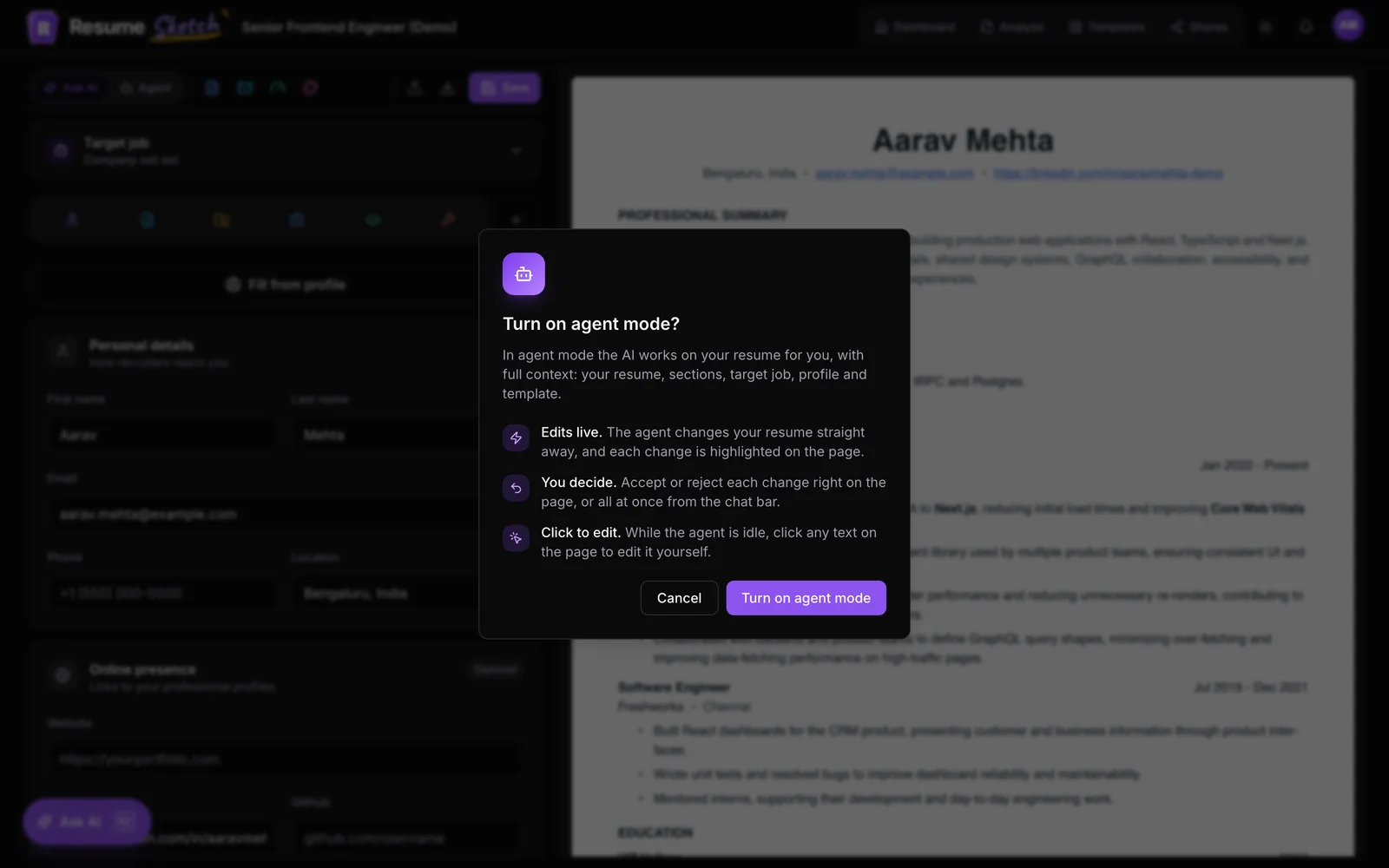
- Edits live. Changes land on your resume straight away and are highlighted on the page.
- You decide. Accept or reject each change on the page, or all at once from the input bar.
- Click to edit. While the agent is idle, click any text on the page to edit it yourself.
02Agent mode or Ask AI?
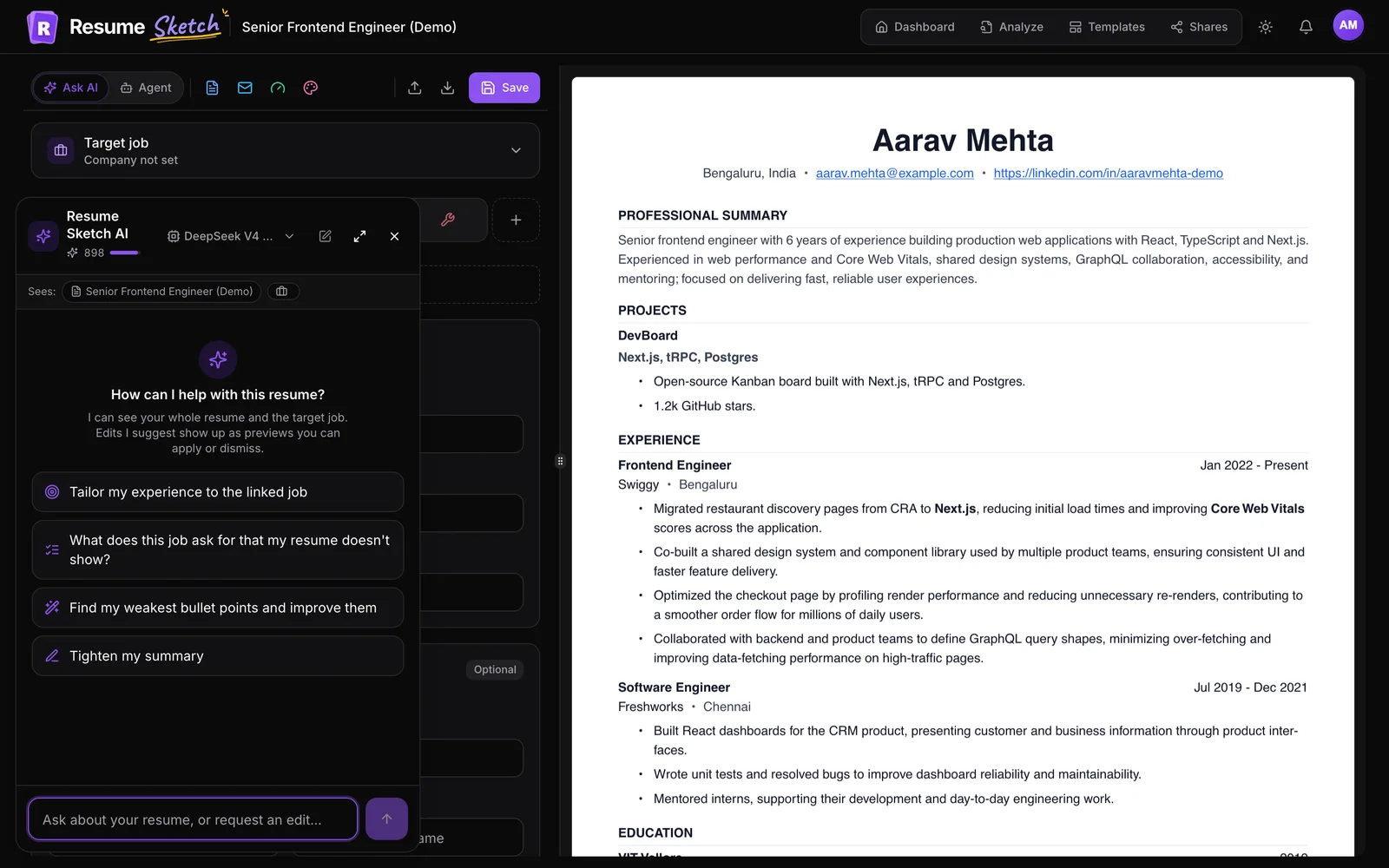
Both use the same AI. The difference is who holds the pen. With Ask AI, every edit is a preview until you accept it. With the agent, edits happen first and you review them after.
| Task | Better choice | Why |
|---|---|---|
| Rewrite one bullet or your summary | Ask AI | Fast, and you compare options before anything changes. |
| Ask a question or get a critique | Ask AI | You want an answer, not edits. |
| Tailor the whole resume to a new job | Agent mode | Touches many sections in a coordinated way. |
| Tighten every bullet across all roles | Agent mode | Repetitive work across the resume. |
| Pull certifications or languages in from your profile | Agent mode | It can read your profile and add sections. |
| Pick a template for your field and fit to one page | Agent mode | It can switch templates and sees the printed layout. |
03Turning on agent mode
- 1
Open a resume in the editor
Click any resume card on your dashboard.
- 2
Choose Agent in the AI mode switch
At the top left of the editor there is a two-way switch: Ask AI and Agent. Click Agent.
- 3
Confirm the first time
The first time, a dialog titled Turn on agent mode? explains how it works. Click Turn on agent mode. After that, the switch flips straight away.
- 4
Get your bearings
The workspace changes: your resume page sits in the middle, with zoom controls at the side, and an input bar at the bottom. The toolbar keeps undo, redo, template, download and Save.
Your choice is remembered in this browser. To go back to the form editor, use the back arrow at the top left or choose Ask AI in the switch.
04Giving the agent a good goal
Before your first message, the input bar shows starter goals that adapt to your resume, such as Tighten every bullet point or Add relevant sections from my profile, like certifications or languages. Clicking one fills the input rather than sending it, so you can edit it first.
A good agent brief is a goal plus guardrails. The agent will happily do a lot; your job is to tell it where to stop.
Thin brief
- Make my resume better.
- Tailor it.
Clear brief
- Tailor my whole resume to the linked Product Analyst job. Reorder bullets so the most relevant come first, update the summary, and keep it to one page. Don't add tools I haven't listed.
- Tighten every bullet to two lines or less and start each with a strong verb. Keep all numbers exactly as they are.
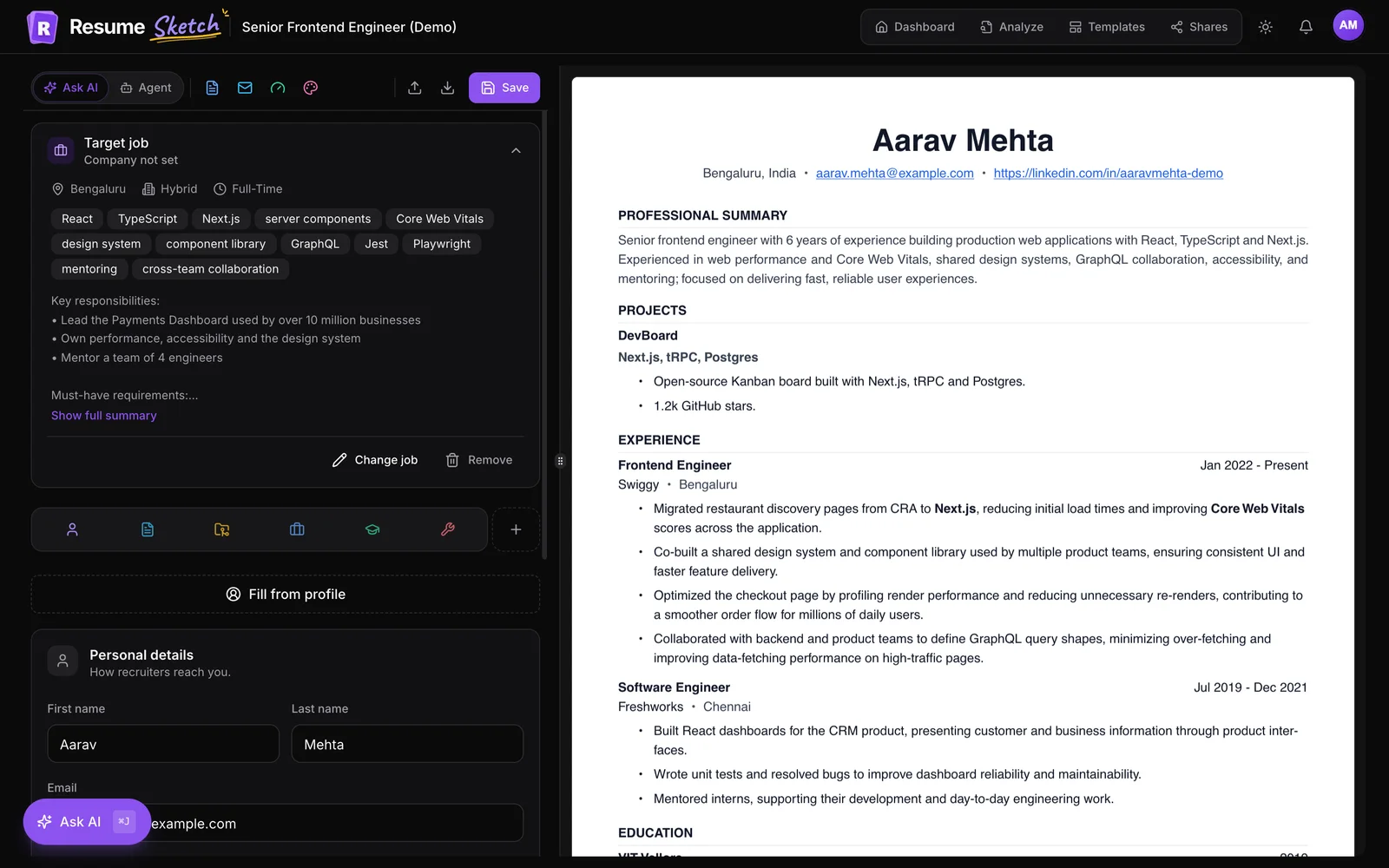
- Link the target job first. The chip at the bottom left of the input bar shows the job or says Target job; click it to add or change one.
- Say what must not change. Numbers, dates, employers, a section you like as it is.
- Set a length limit. "One page" or "no more than five bullets per role".
- One goal per run. Tailoring and redesigning in the same message makes review harder.
Tailor my resume to the linked Customer Success Manager job at Northwind. Lead the summary with retention results, move my renewals and onboarding bullets to the top of each role, use the posting's wording for skills I already list, and keep everything on one page. Do not change any numbers, dates or job titles.
A brief like that gives the agent a clear finish line and gives you a clear checklist for the review: did the summary lead with retention, did the right bullets move up, did anything factual change?
Press Enter to send. While it works, the placeholder reads The agent is working… press Stop to interrupt, and the activity panel above the input lists each step, such as rewriting experience or switching template. ⌘J or Ctrl+J puts the cursor back in the input bar.
05Reviewing the agent's changes
This is the part that matters. The agent edits directly, but nothing is final until you have looked at it.
- 1
Find the highlights
Every changed item is highlighted on the page with a small label and its own accept and reject buttons. The input bar shows a count, for example 3 changes to review.
- 2
Accept or reject one by one
Read each highlighted change in context. Rejecting a change puts the previous text back.
- 3
Or decide all at once
If you trust the run, use Accept all in the input bar. If it went the wrong way, Reject all undoes the lot.
- 4
Fine-tune by hand
When the agent is idle, click any text on the page to edit it in place. The edit box also has Ask agent to improve for a quick targeted request.
- 5
Save
Click Save in the toolbar when you are happy. Undo and redo in the toolbar step through recent changes.
06Five jobs agent mode handles well
- Full tailoring. "Tailor my whole resume to the linked job" after adding a target job. Then review the summary and the top role first.
- Bullet clean-up. "Tighten every bullet point", with a rule about keeping numbers.
- Profile to resume. "Add my certifications and languages from my profile."
- Design pick. "Pick the best template for a staff nurse and keep it to one page."
- Cover letter. "Write a cover letter for this job." It appears below the resume, ready to review.
For a cover letter in more depth, see the cover letter guide.
07Common mistakes
- Accept all without reading. The agent can make a dozen edits in one run. Skim each highlight at least.
- Running the agent on your only copy. For big changes, copy the resume on the dashboard first and work on the copy.
- No target job. Tailoring without a job means tailoring to a guess.
- Long, mixed briefs. Several short runs are easier to review than one huge one.
- Forgetting to save. The editor auto-saves regularly, but a quick Save after a big review is a good habit.
Agent runs use AI credits like the rest of the AI features; the meter sits in the input bar. See the credits guide for plan details.
Frequently asked questions
Which plans include agent mode?
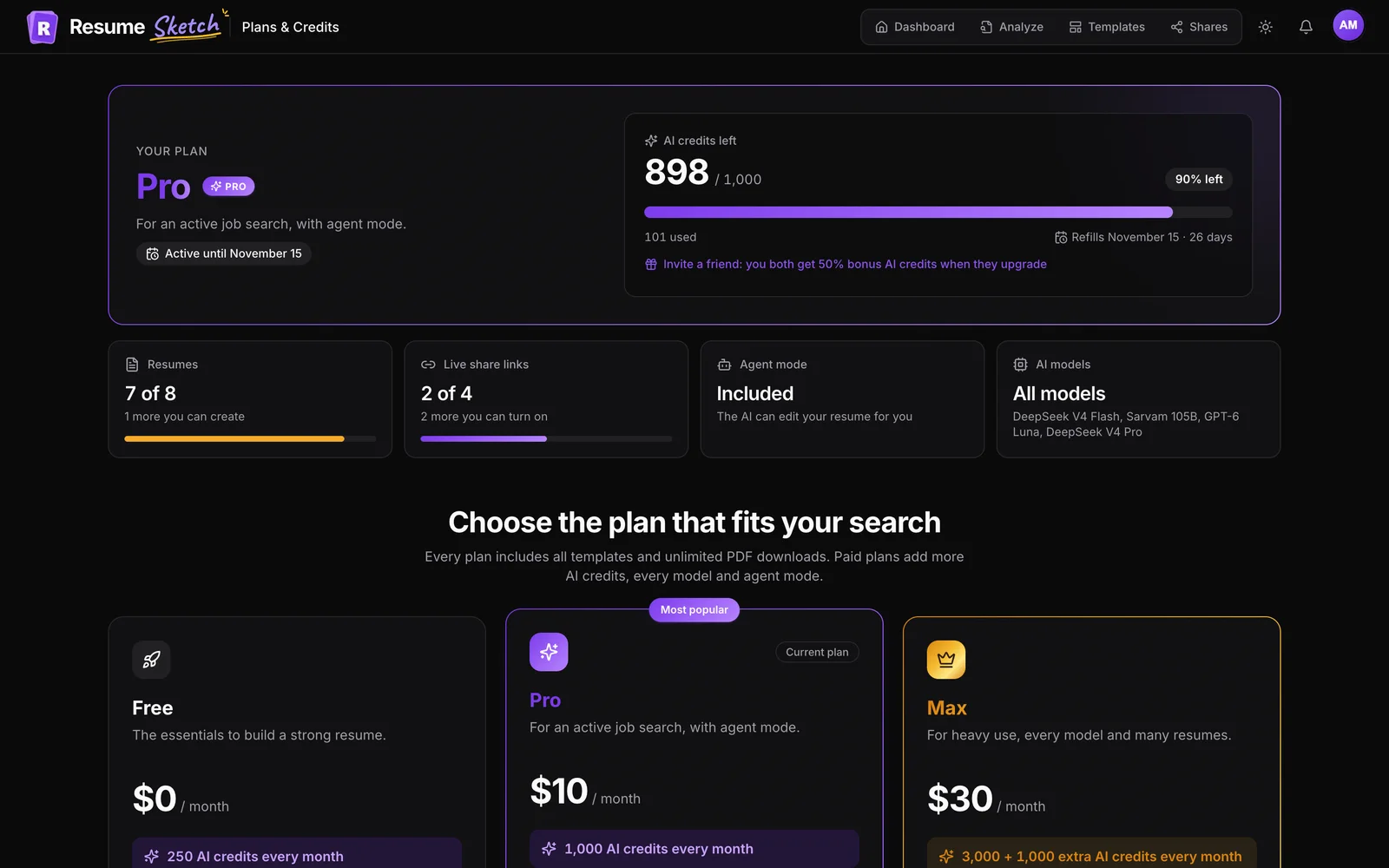
Pro and Max. On the Free plan the Agent option is locked; Ask AI is available on every plan.
Can I undo what the agent did?
Yes. Reject any highlighted change to restore the previous text, use Reject all to undo everything pending, or use undo in the toolbar.
Does the agent use my master profile?
Yes. It has your profile as context, so it can bring in items such as certifications or languages that are in your profile but not yet on the resume.
Can I edit the resume myself while in agent mode?
Yes, while the agent is idle. Click any text on the page to edit it in place. Editing is paused while the agent is working so you do not clash with it.
What is the difference between agent mode and Ask AI?
Ask AI suggests edits as previews you accept one by one before anything changes. Agent mode makes the edits directly, highlights them, and lets you accept or reject afterwards. Use Ask AI for targeted fixes and agent mode for multi-step work.